Image editing
Create eight cartoon styles from one photo step by step
Follow a practical GPT Image workflow for exploring multiple cartoon treatments from one reference photo while keeping the subject consistent.
What you will learn
A practical workflow to try
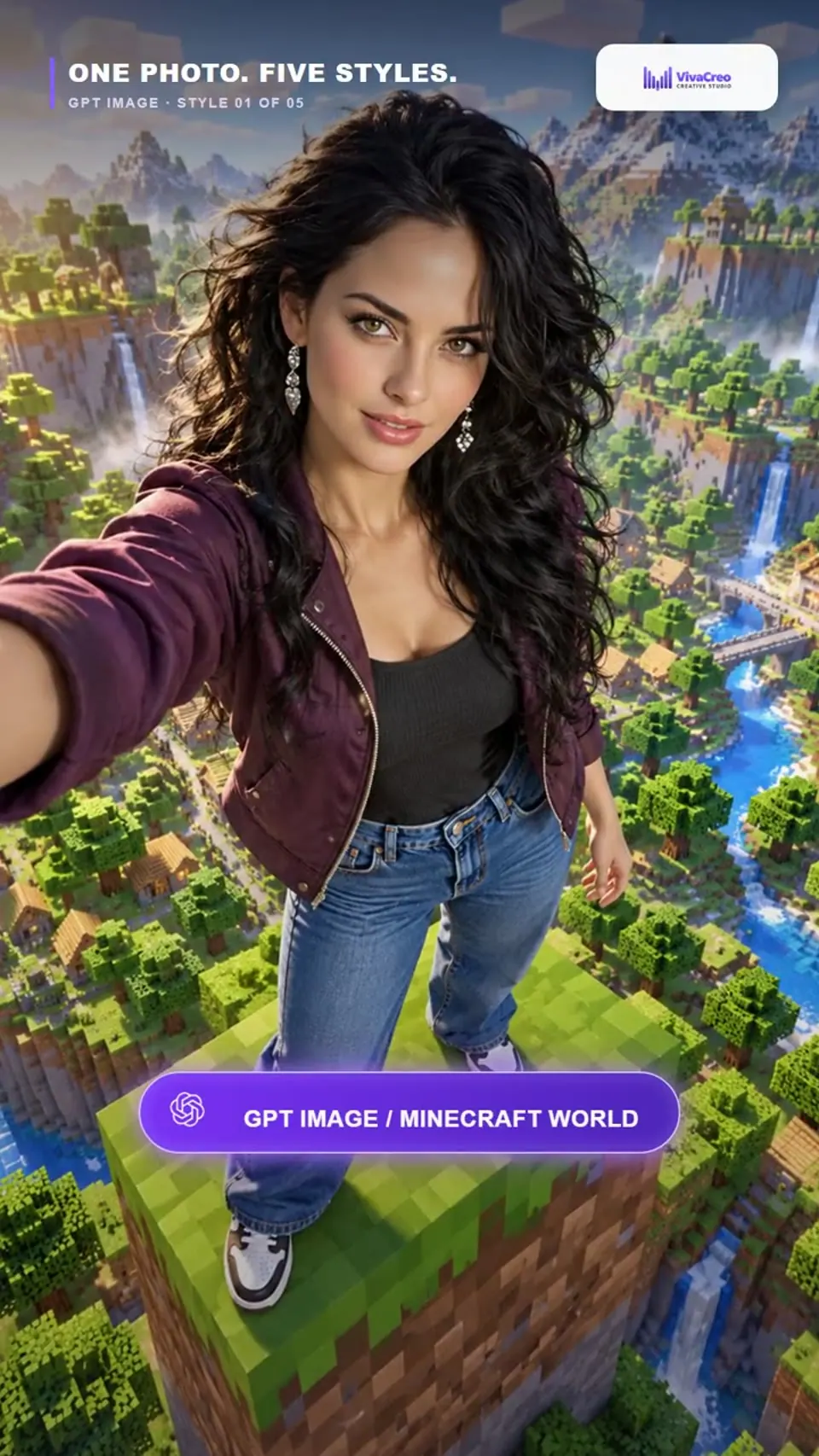
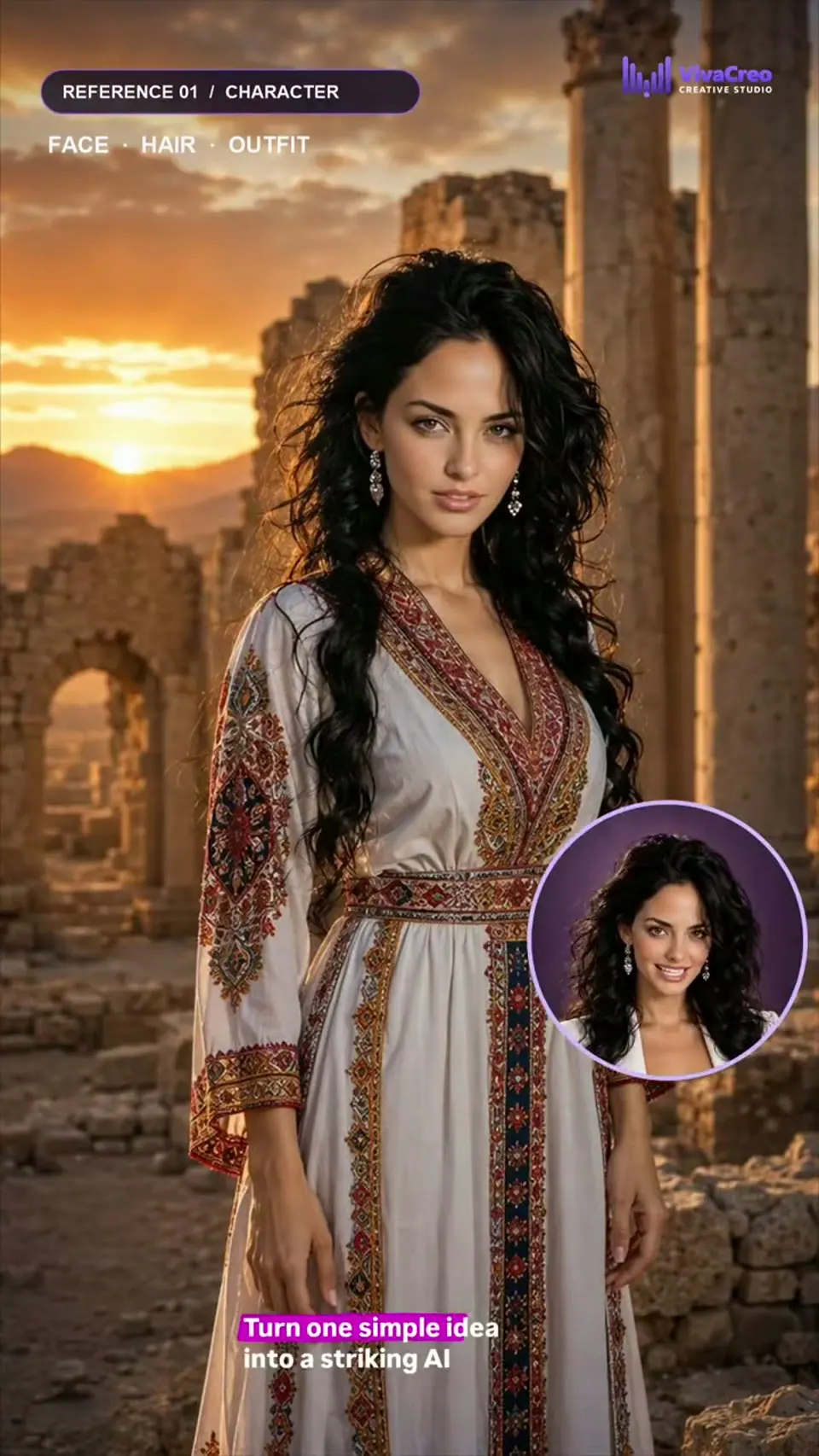
What if one photo could become eight completely different cartoon styles? Let's create them together, step by step. First, open VivaCreo and go to Image Studio. Choose OpenAI as the provider, then select GPT Image 2. Set the image format to 9x16 for a vertical result. Under Reference Images, upload a clear photo of your character. This helps the model keep the person's identity. Now enter a prompt describing the style you want. Check your settings and the displayed cost, then click Generate. Try a delicate urban watercolor, a fashion illustration with a long silhouette, or colorful geometric pop art. You can also create a portrait from folded paper, a surreal fashion collage, or an angular editorial scene. For a softer picture, tutorial scene. For a softer look, try a storybook drawing in ink and pencil, or turn your character into a knitted textile doll. Use the same reference photo each time, but change the style description. The results can vary, so adjust your prompt until you find a look you love. materials.
- Start from one clear reference photo and choose a single style direction for each result.
- State which subject features should stay consistent as the style changes.
- Compare outputs before refining the style description or composition.
Read the video transcript
- What if one photo could become eight completely different cartoon styles?
- Let's create them together, step by step. First, open VivaCreo and go to Image Studio.
- Choose OpenAI as the provider, then select GPT Image 2. Set the image format to 9x16 for a vertical
- result. Under Reference Images, upload a clear photo of your character. This helps the model keep the
- person's identity.
- Now enter a prompt describing the style you want.
- Check your settings and the displayed cost, then click Generate.
- Try a delicate urban watercolor, a fashion illustration with a long silhouette,
- or colorful geometric pop art.
- You can also create a portrait from folded paper,
- a surreal fashion collage, or an angular editorial scene.
- For a softer picture,
- tutorial scene. For a softer look, try a storybook drawing in ink and pencil, or turn your character
- into a knitted textile doll. Use the same reference photo each time, but change the style description.
- The results can vary, so adjust your prompt until you find a look you love.
- materials.
Put it into practice
Adapt the idea to your next creation
Start with a clear subject, choose one visual direction, and review the selected model and generation estimate before creating in VivaCreo.
Open a creative studio