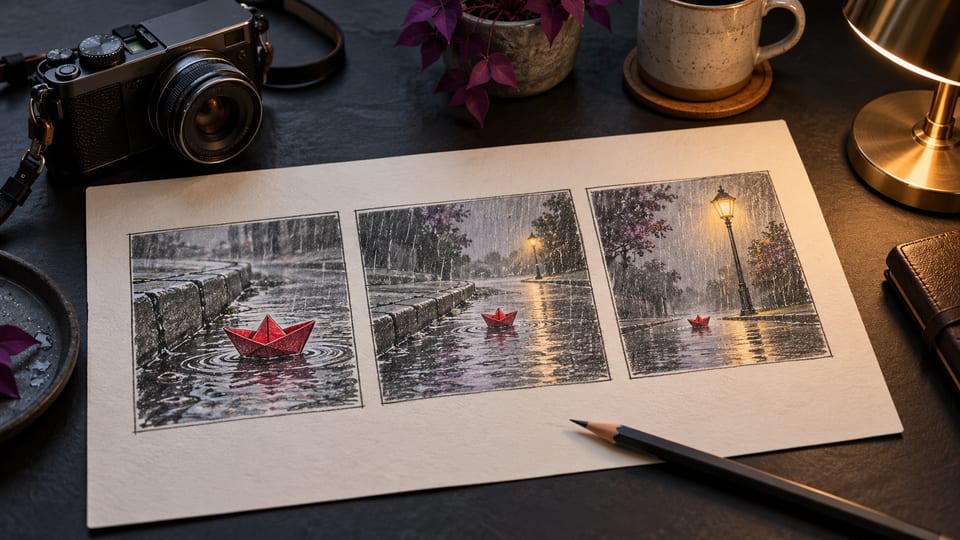
Nano Banana 2.1 in VivaCreo: Photo Editing, Features, and Credits
Nano Banana 2.1 is available in VivaCreo Image Studio for Creator plans and above. See what changed, how to edit with photo references, and current 1K to 4K credit estimates.
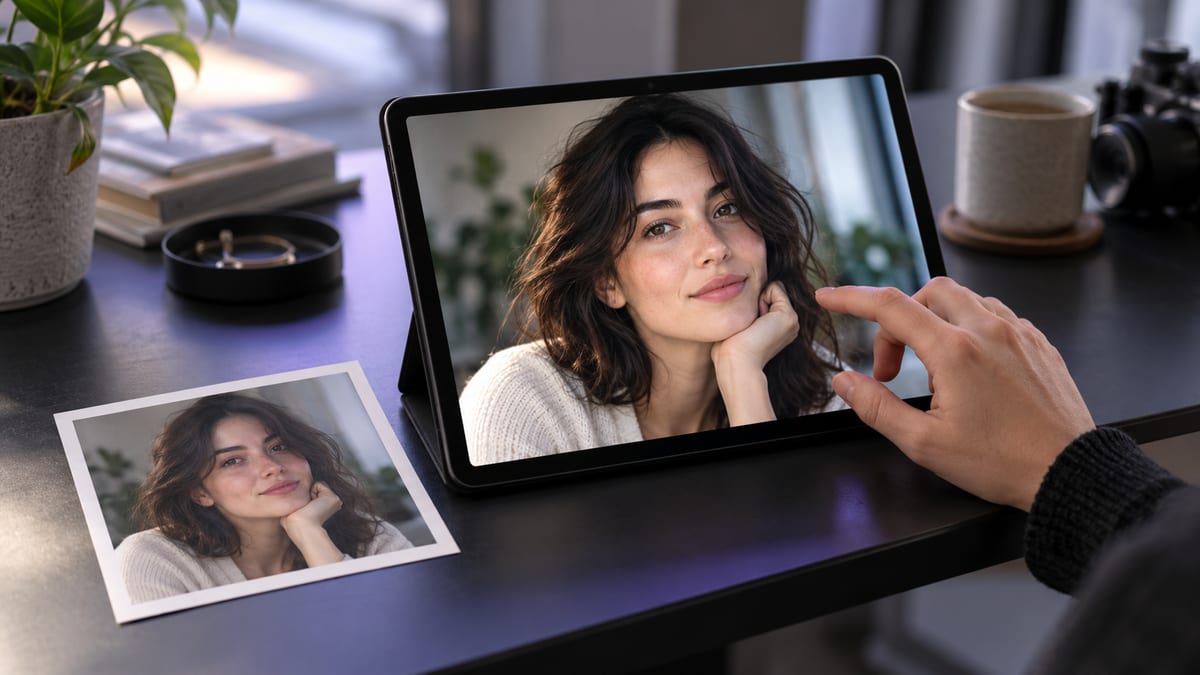
Nano Banana 2.1 is available in VivaCreo Image Studio for Creator plans and above. It generates images and edits them from photo references. The update focuses on visual quality, following instructions, text in images, and consistency when refining a result over several turns.
Is Nano Banana 2.1 available in VivaCreo?
Yes. Select Nano Banana 2.1 in Image Studio. It is included from the Creator plan tier. The model picker and the current credit estimate in your account are the final check for access and price.
The model supports text-to-image generation and image editing. You can begin with a written description or add a photo as a visual reference. When you edit an existing image, state which details should stay the same and what you want changed.
What changed in Nano Banana 2.1?
Nano Banana 2.1 is an update to Nano Banana 2. Its published capabilities include improved visual quality, better adherence to prompts, more consistent characters across edits, and more accurate text rendering. It supports image generation at 1K, 2K, and 4K output sizes.
| Task | Current setup | How to use it |
|---|---|---|
| Create an image | Text prompt, 1K, 2K, or 4K | Describe the subject, setting, composition, and any important details. |
| Edit a photo | Up to 14 image references | Upload the photo and name the specific changes you want. |
| Refine a result | Multi-turn editing | Keep the same conversation and request one focused revision at a time. |
| Render image text | Improved text rendering | Include short, exact wording. Check spelling and layout in the result. |
These capabilities can help with product photos, portraits, background changes, and visual variations. They do not guarantee that every requested detail will be exact. Review faces, small text, product shapes, and fine edges before using an image.
How many credits does Nano Banana 2.1 cost?
In VivaCreo, 20 internal billing units equal 1 displayed credit. At the current rate, Nano Banana 2.1 starts at 4.1 credits for 1K, 6 credits for 2K, and 13.6 credits for 4K output. The table compares the minimum output estimates with the other Nano Banana models in Image Studio.
| Model | 1K | 2K | 4K |
|---|---|---|---|
| Nano Banana 2 | 8.05 credits | 12.15 credits | 18.15 credits |
| Nano Banana 2.1 | 4.1 credits | 6 credits | 13.6 credits |
| Nano Banana Pro | 16.1 credits | 16.1 credits | 28.8 credits |
At matching output sizes, Nano Banana 2.1's configured output rate is about 25 to 51 percent below Nano Banana 2, and about 53 to 75 percent below Nano Banana Pro. This makes 2.1 a lower-cost option for many image and photo-editing tasks, while Pro remains a separate model choice for users who want to compare its results.
These are minimum estimates for the selected output size. Prompt and system-instruction length, uploaded references, and optional search features can affect the final quote. Image Studio shows the current estimate before you generate, so use that figure for your request.
How to edit a photo with a reference image
- Open Image Studio and choose Nano Banana 2.1 from the model list.
- Upload a clear PNG, JPEG, or WebP reference photo. VivaCreo currently allows up to 14 image references, each up to 7 MB, with a 30 MB combined limit.
- Say what must remain unchanged, such as the person's pose, clothing, product shape, or camera framing.
- Describe only the changes you need, such as replacing the background, adjusting lighting, or changing a color.
- Start with 1K while checking the composition. Use 2K or 4K when the detail and larger output are useful.
Use a well-lit, sharp reference when the subject's appearance matters. If the image contains several people or products, identify the one to edit. A focused instruction is easier to review than a prompt that asks for many unrelated changes.
Photo editing prompt example
This example asks for a background change while keeping the photographed person and framing stable. Adjust it to match your own image.
Use the uploaded photo as the reference. Keep the same adult person, facial features,
hairstyle, clothing, pose, and camera framing. Replace only the background with a
softly lit modern office. Match the light and perspective to the person in the photo.
Keep natural skin texture. Do not add objects, text, logos, or other people.
After the first result, describe one correction at a time. For example, ask to make the background less bright without changing the person's face or clothing. This makes it easier to see whether the edit followed the instruction.
For a broader prompt checklist, see our guide to structuring AI video prompts. The same practical ideas, such as describing a clear subject and changing one thing at a time, are useful when writing image prompts.
Upload limits and practical notes
| Item | Current limit |
|---|---|
| Accepted image formats | PNG, JPEG, and WebP |
| Reference images per request | Up to 14 |
| File size per image | Up to 7 MB |
| Combined image size | Up to 30 MB |
| Output size options | 1K, 2K, and 4K |
Upload only images you have the right to use. Keep a copy of the original, especially when changing a product image or an important portrait. If exact lettering or fine product details matter, inspect them at full size before publishing.
Model availability, upload limits, and credit rates can change. Check the model settings and current estimate in VivaCreo Image Studio before submitting a request. The article was checked on October 20, 2026.
Frequently asked questions
Can I use Nano Banana 2.1 in VivaCreo?
Yes. It is available in Image Studio for Creator plans and above. Your model picker shows the models available to your account.
Can Nano Banana 2.1 edit my existing photo?
Yes. Upload a supported reference image and describe what should change and what should stay the same. Review the generated result because exact preservation is not guaranteed.
How much does a Nano Banana 2.1 image cost?
The minimum estimate starts at 4.1 credits for 1K, 6 credits for 2K, and 13.6 credits for 4K. Prompt and reference inputs can affect the final quote, so check Image Studio before generating.
Is Nano Banana 2.1 cheaper than Nano Banana 2?
At the current configured output rates, Nano Banana 2.1 costs less at 1K, 2K, and 4K. The exact percentage depends on the selected size, and input costs can change the final quote.
Does it always preserve a person's face or product exactly?
No. Reference images and specific instructions can guide an edit, but every result needs review. Generate another variation or simplify the requested changes if important details drift.