How to Plan a 30-Second AI Video with Seedance 2.5
Plan a Seedance 2.5 video of up to 30 seconds with one main action, a clear sequence, and an ending. Includes timing suggestions and prompt checks.
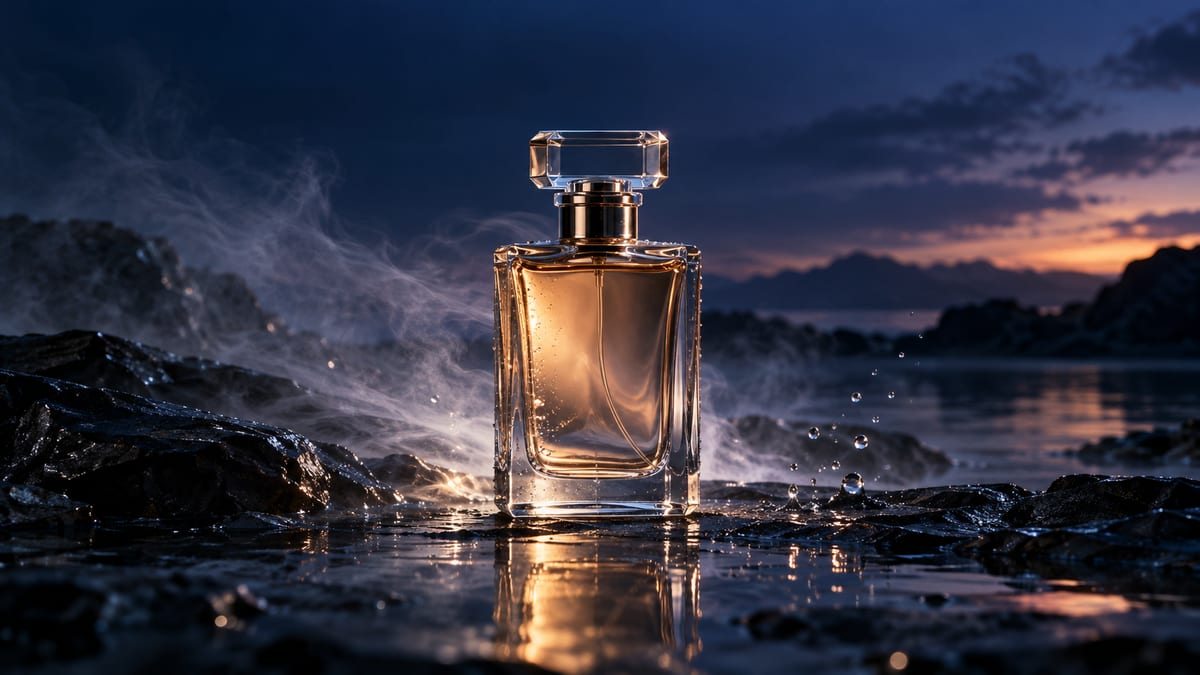
You can select a Seedance 2.5 video duration of up to 30 seconds in VivaCreo. A longer clip works best when it follows one central idea. Plan the opening, the main action, and the ending before writing the prompt.
Keep the video focused on one idea
Start with the subject and setting. Then describe what changes from beginning to end. Add camera and lighting details only when they help explain the scene.
A 30-second limit does not mean every second needs a new event. Too many actions, locations, and camera moves can make the intended sequence harder to follow. Choose one central action and include only details that support it.
Decide whether the video should be one continuous take or a sequence of shots. For a continuous take, keep the camera direction consistent. For separate shots, describe each shot and its purpose.
Build a 30-second sequence
This beat sheet is a planning aid for a product clip. Adjust the timing to fit your subject. Time markers explain your intended order, but a video model may not follow them precisely.
| Approximate time | Shot purpose | Example for one product |
|---|---|---|
| First 5 seconds | Establish the subject and setting | Show the bottle beside calm water at dusk. |
| Seconds 6 to 13 | Bring attention to the subject | Move from a wide view to a medium view of the bottle. |
| Seconds 14 to 23 | Show one visual detail or action | Move the camera past the glass as light reflects across it. |
| Final 7 seconds | Hold on a clear ending | Finish on a steady close view with the bottle in focus. |
Check that each beat follows from the previous one. If you cannot explain why a shot is needed, remove it. For a 10-second video, use the same basic structure with one setup, one action, and one ending.
Copyable 30-second prompt example
This example turns the beat sheet into a prompt. The timing describes the intended sequence and is not a guarantee of exact cuts or duration for each shot.
Create a 30-second product video featuring one amber glass perfume bottle
beside calm water at dusk. Keep the bottle in the same place and preserve its
shape and color throughout.

Opening: show the bottle in a wide view with the water and dark shoreline behind it.
Next: move the camera slowly closer while keeping the bottle in focus.
Detail: move from left to front as soft warm light reflects across the glass.
Ending: hold on a steady close view of the bottle. Do not add people, extra
bottles, readable text, labels, or logos. Use quiet water ambience if audio is
available. Keep the scene realistic and the camera movement smooth.
If you need a particular label or exact written wording, add it during editing rather than relying on generated lettering. For a more stable result, simplify the prompt before adding more visual details.
Check duration, resolution, and cost
The current VivaCreo setup lists durations from 4 to 30 seconds, 480p and 720p resolution, and several aspect ratios. The selected mode determines whether you can add a starting image, an ending image, or reference files. Check the controls for the chosen Seedance 2.5 mode before preparing uploads.
| Setting | Available choices | How to choose |
|---|---|---|
| Duration | 4 to 30 seconds, or Auto | Choose the shortest duration that fits the sequence. |
| Resolution | 480p or 720p | Compare the current credit estimate before selecting a higher resolution. |
| Aspect ratio | Auto, 21:9, 16:9, 4:3, 1:1, 3:4, or 9:16 | Match the destination format, such as vertical 9:16 for phone-first clips. |
| Audio | Generate audio on or off | Turn it on when the scene needs sound and the selected mode offers the control. |
A longer duration and higher resolution can change the cost. The current credit estimate shown in Video Studio is the one to use before submitting a request. It can change when you adjust settings.
Use text-to-video when a written description is enough. Use image-to-video when the starting appearance matters, or reference-to-video when a supported reference can guide a specific part of the result. Do not assume each mode accepts the same files or limits.
Review the first result and make a focused change
After the first generation, identify the most visible problem. If an action is missing, shorten the sequence and state that action more directly. If the subject changes, repeat the details that identify it or use a supported reference. If the framing is wrong, adjust the camera instruction without changing the whole scene.
Keep the previous prompt and change one main instruction at a time. This makes it easier to tell whether the revision improved the result.
Frequently asked questions
Can I select a 30-second Seedance 2.5 video in VivaCreo?
Yes. The current settings include durations up to 30 seconds. Confirm the selected mode and duration in Video Studio before generating.
Does a 30-second duration guarantee a complete story?
No. The model interprets the prompt, so it may not follow the intended order or timing exactly. Describe connected actions and review the result.
Which resolutions can I choose?
The current setup lists 480p and 720p. The settings displayed for the selected model in Video Studio show what is available for your request.
Does a longer video use more credits?
The estimate depends on the model and its selected settings. Check the cost shown in Video Studio before you generate.