Move the subject
Describe a gesture, walk, turn, expression or natural physical action.
 VivaCreo
Image to Video
Start with a source visual, describe the action or camera movement and create a short video concept without replacing the original. It is a practical way to explore motion from artwork, a product scene or a campaign still.
The exact credit cost is shown before generation.
From a frame to a sequence
Image-to-video begins with an existing visual reference. The prompt should explain what moves, what remains stable and how the camera observes the scene. A simple motion instruction is often more useful than trying to change everything at once.
The result is a separate video stored beside its source context in Studio. You can return to the original image, try another movement direction or use a new frame as input for another workflow.
Motion direction
Describe a gesture, walk, turn, expression or natural physical action.
Use a gentle pan, push-in, orbit or pull-back to create a clear viewpoint.
Let light, fabric, weather, water or background activity animate the scene.
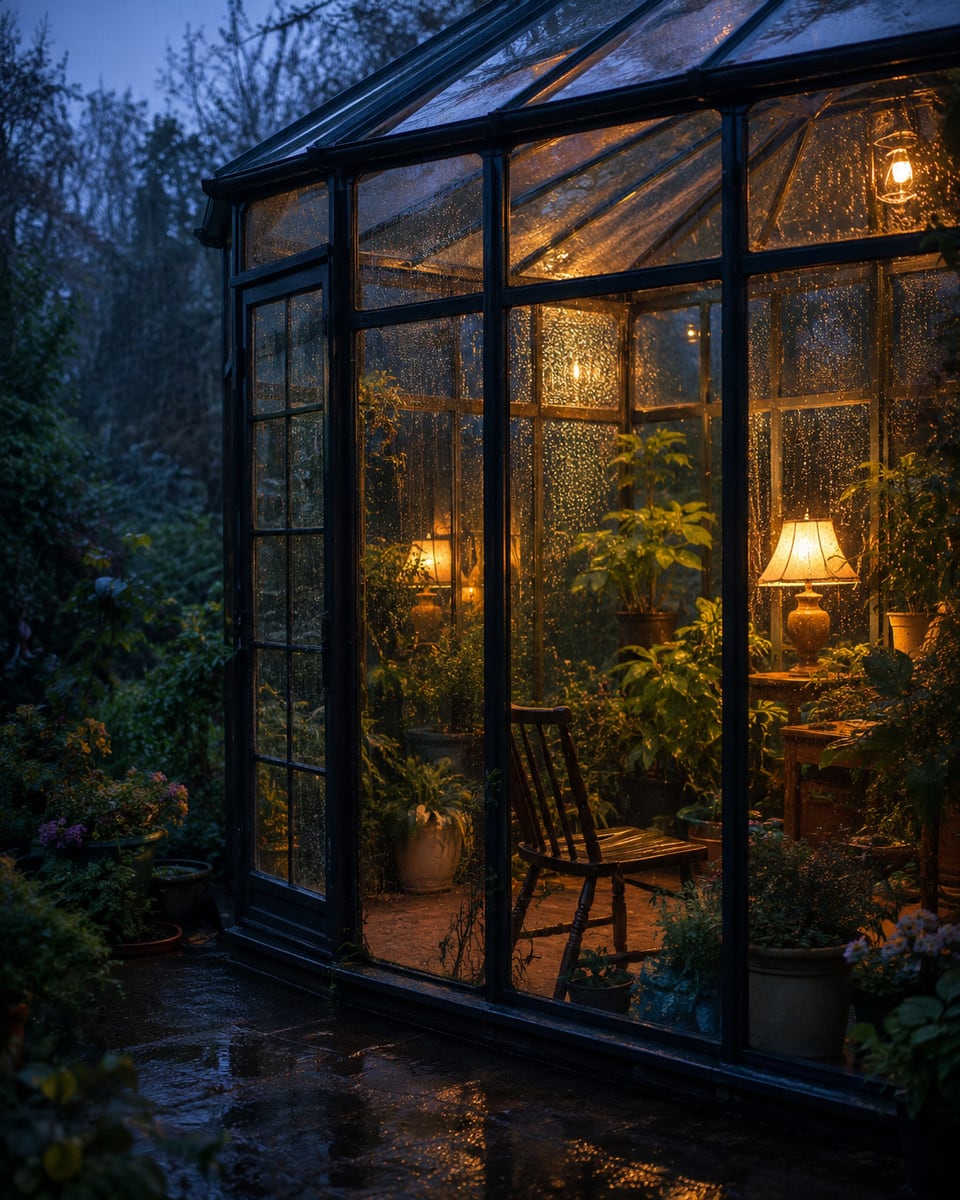
AI-generated visual directions
These published AI-generated visuals show artwork, product and atmospheric scenes that can be developed into a motion brief.


How it works
Use a clear source image with the visual subject you want to animate.
State the subject action, camera direction or environmental movement.
Review the private output, then refine the idea or download the result.
Private by default
Image-to-video creates a new output. The source image remains in your private workspace, ready for another animation, an image edit or deletion.
Clear pricing
VivaCreo shows the applicable credits before your animation request is sent.
FAQ
Choose a clear still image with a recognisable subject and enough visible context for the movement you want to describe.
Yes. Include a camera instruction such as a slow push-in, pan, orbit or pull-back in the video prompt where the workflow supports it.
When the selected workflow supports an end-frame or additional reference, the control appears in Studio before you start.
No. The animation is generated as a separate video and the source image remains available in your private workspace.
The Studio shows the applicable cost or estimate before generation based on the selected output settings.